



Client Portal
Secure File Sharing & Management
Page Quick Links:
Our Client Portal Login
Our Client Portal is supported by Microsoft’s SharePoint. To ensure the security of your documents and correspondence, the email address that you use to login must match the email address Atomic Business Advisers has as the primary contact for you and/or your entities. We recommend you use the same email address across all entities so you can access all documents with one login.

How to Login
To login to the new client portal, you must have a Microsoft or Gmail domain email address.
Please note that Microsoft includes @hotmail.com, @outlook.com & @msn.com or any email address that is managed on a Microsoft email server (such as your business or work email address).
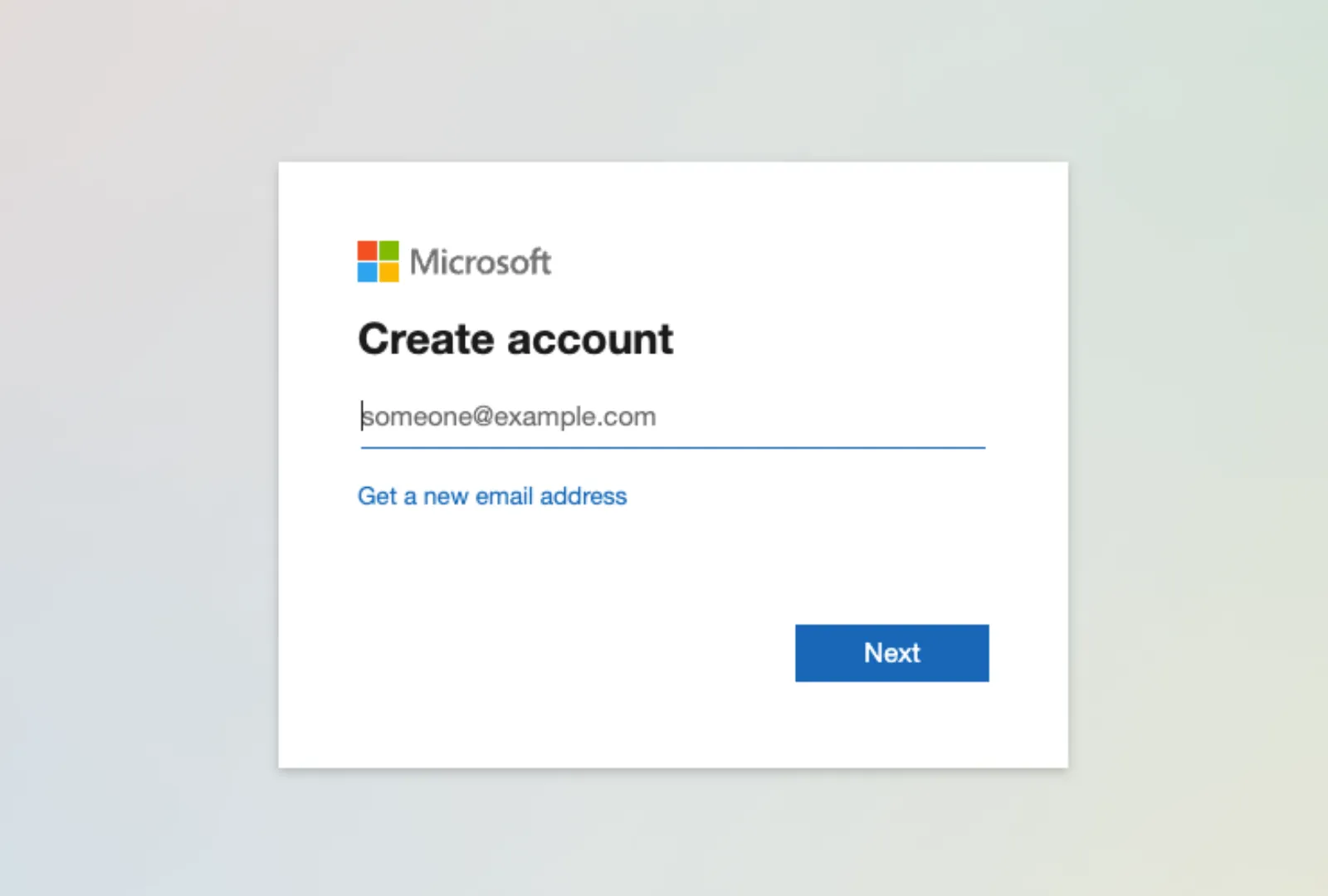
If you do not have a Microsoft or Gmail email address, you can create a Microsoft login with your existing email address here.
Navigating the Atomic Business Advisers Client Portal
Once you are logged into the client portal, click on the image located on the left-hand side containing: “Access your Documents”. This allows you to access the ‘Documents’ page where you can:
- Access documents Atomic Business Advisers has shared with you.
- Upload documents.
- Edit documents shared with you for co-editing (such as excel or word files).

‘Documents’ page
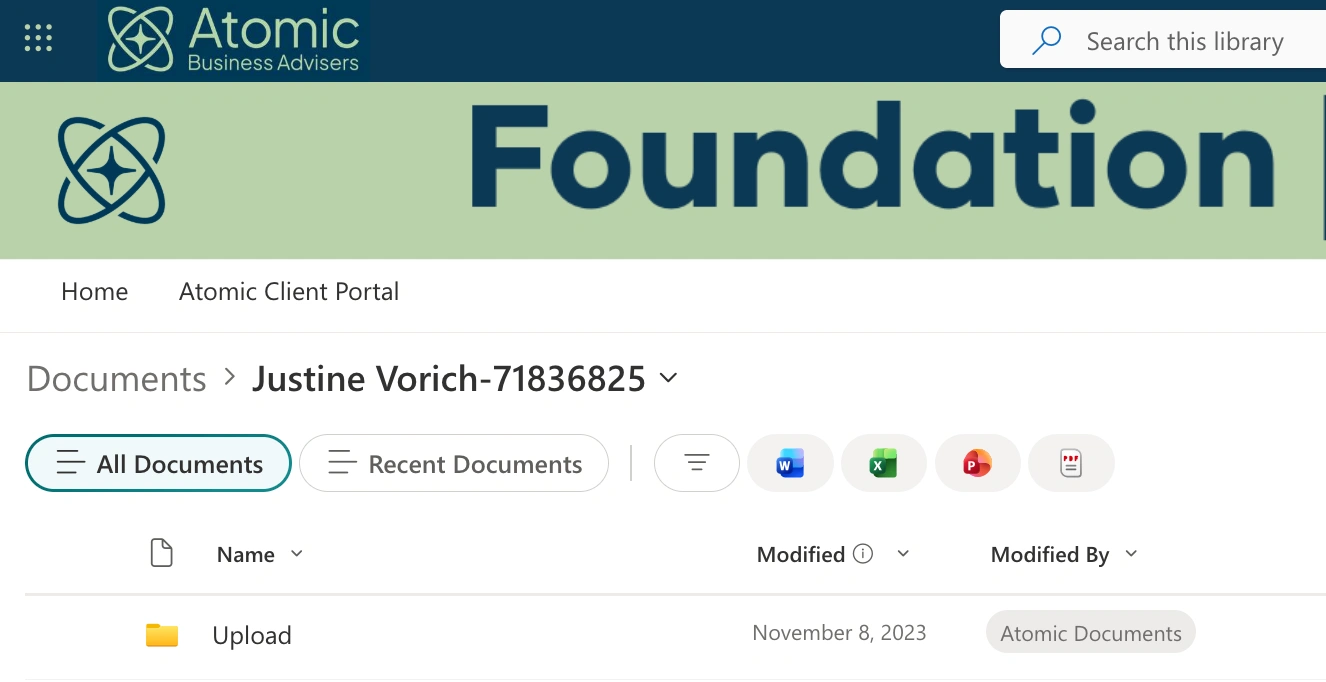
Once you are on the ‘Documents’ page, a list of all client folders you have access to will appear.
This may include you and your related entities. If there are any entities missing, please contact us so we can rectify this. You will notice that entity and individual names will appear alongside a reference code. Simply click on the folder name to access the contents.
Also, any Word or Excel files shared with you for co-editing will appear in the client folder (this may include forms and checklists).
Please note that when initially invited to our new Client Portal, you may just see an empty folder until we have uploaded documents (such as ATO Correspondence, tax returns or establishment documents).
Uploading Documents
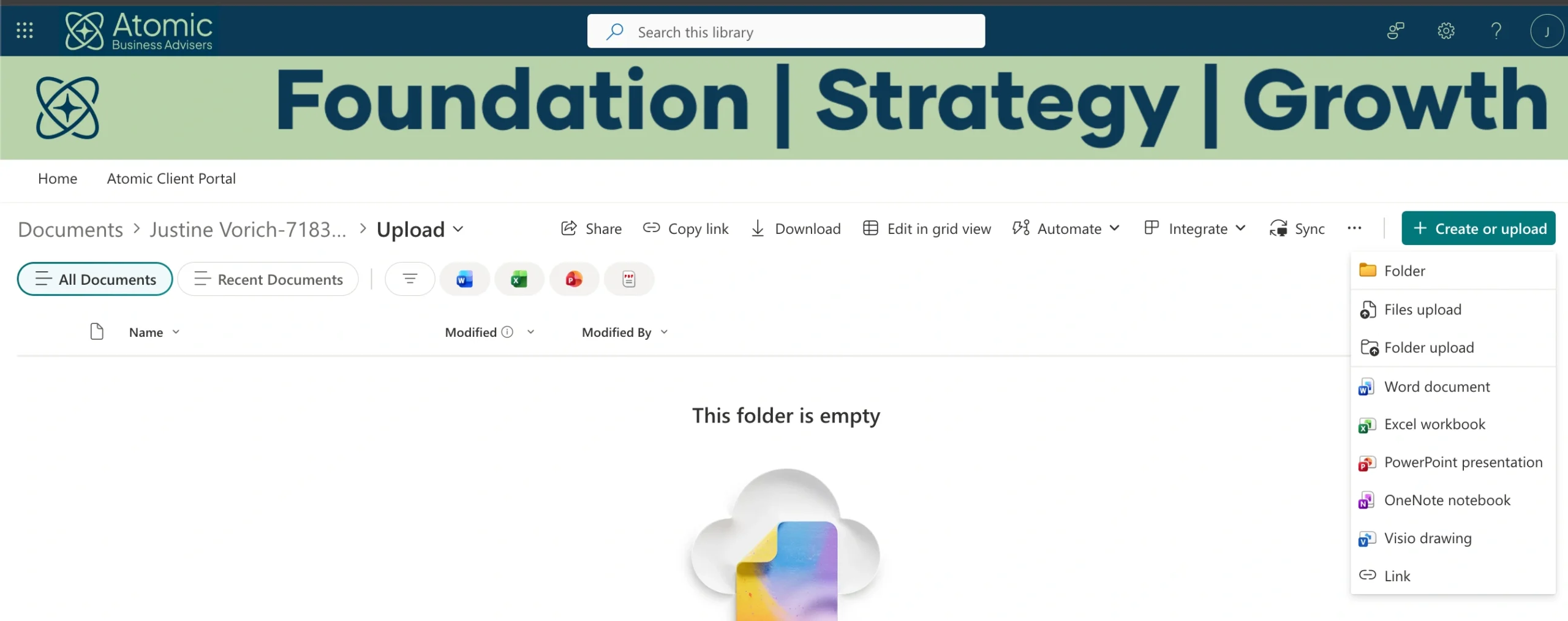
Within each client folder there is an uploads folder. This is where you upload documents to share with Atomic Business Advisers.
Once within the Upload folder, you can upload files and folders by clicking on the ‘Upload’ button or use the drag and drop feature.
Please note that files will automatically upload to Atomic Business Advisers every 10 minutes. After documents have been uploaded, they will be removed from the Upload folder. Automated notifications are sent to Atomic Business Advisers client managers every 2 hours to notify them of any documents uploaded.
Accessing Help
Click on the image on the right-hand side containing “How to use the Client Portal” to access these helpful instructions at any time.
Why You Should Use Our Portal?
Once in the portal, you are able to securely upload any information and documentation that may be required for the completion of your BAS’s, Tax Returns etc.
Access to the New Client Portal
If you have not been given access to your client portal yet, please contact us using the form on the right.